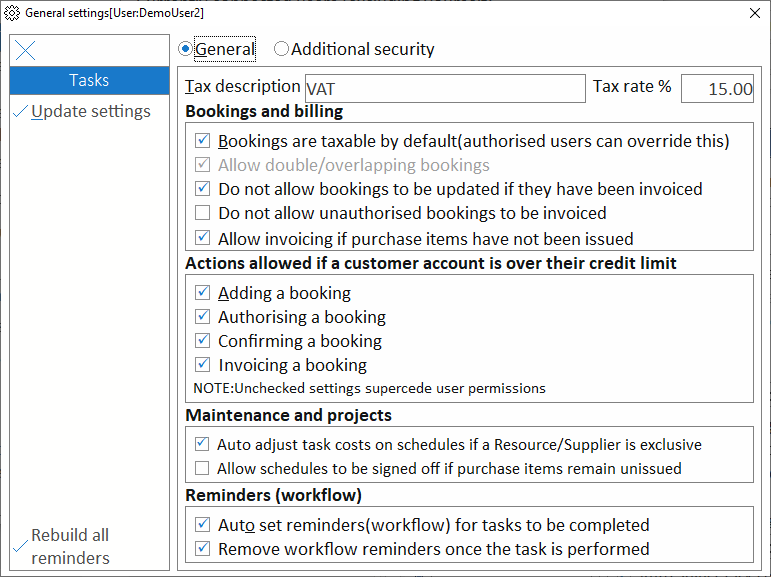
Taxation. Specify any applicable taxation description and corresponding fixed tax rate (in full number format e.g. “15” for “15%”) in the fields provided.
If your organisation is exempt from taxation, leave these fields empty.
In addition to bookings, the taxation settings are applied to purchase orders, goods received notes and return notes.
A change in the tax rate will affect the tax reflected on historic bookings, purchase orders, goods received notes and return notes.
Invoiced bookings carry tax at the ruling tax rate at date of invoice.
Bookings and billing
-
All bookings have a Taxable option. This would not apply if you do not specify the tax rate. If, as a rule, you are required by law to charge tax on all invoices and do not wish to give users any override permission, check this option. Any user permissions that would allow a user to override the taxation option will be disregarded and this setting will take precedence.
-
Allow bookings to overlap (i.e. double booking). This enables users to book a facility out to more than one customer at the same time (or with partial overlapping). This would primarily apply where multiple customers share a facility at the same time but need to be invoiced separately. This option also enables you to double book a facility and then authorise on a first come first served basis. When a booking is Confirmed or Authorised you will be notified of the overlap/double booking. Once this feature has been enabled, it cannot be disabled at a later stage. This prevents any conflicts occurring with existing overlapping/double bookings. BE SURE you want to enable this option before committing the changes. The option will be greyed out in future. This option is disabled by default.
-
An invoiced booking cannot be amended unless it has been credited.
-
If a booking has not been authorised, users may not invoice it.
-
Where purchase items have been allocated to a booking, the booking cannot be invoiced until the purchase items have been issued. If this option is unchecked, purchase items can be issued at a later stage to complete the allocation. See Purchases and Suppliers module for other options in this regard.
Actions allowed if a customer is over their credit limit. You may allow the booking to be added, but the user with authority to Authorise/approve won’t be able to do so if the Customer account is over its limit.
Similarly, you may allow authorisation, but the booking cannot be confirmed if that option is checked. Finally and at risk, you may allow the booking to go through completely, but disallow invoicing as a final account control.
Maintenance and projects. Where suppliers/resources provide services exclusively and charge out on an hourly basis, changing the duration and/or date of a task will result in an automatic recalculation of the cost for that task.
This is only applied when updating or creating schedules. See Adding schedules in the Maintenance and Projects module.
As with invoicing of bookings where purchase items have not been issued, enable the option to sign a schedule off as complete even if the assigned purchase items have not been issued.
Purchase items can be issued at a later stage if required.
Reminders (workflow). The reminder options are self-explanatory.
Removing reminders for completed tasks will result in deletion.
The audits provide all necessary details and therefore retaining reminders indefinitely isn’t necessary.
Rebuild all reminders. Select this option to empty the reminder cache and rebuild all pending workflows.
Specific reminders set for users are also removed if they are older than one year.
The following are rebuilt where the applicable date (e.g. date a facility is booked for) is no older than one year ago:-
-
-
-
Process a customer invoice
-
Process a customer receipt
-
Issue purchase items against a booking
-
Authorise a maintenance/project schedule
-
Sign off a maintenance/project schedule
-
Issue purchase items against a maintenance/project schedule
-
Order service items for a schedule
-
Authorise a purchase order
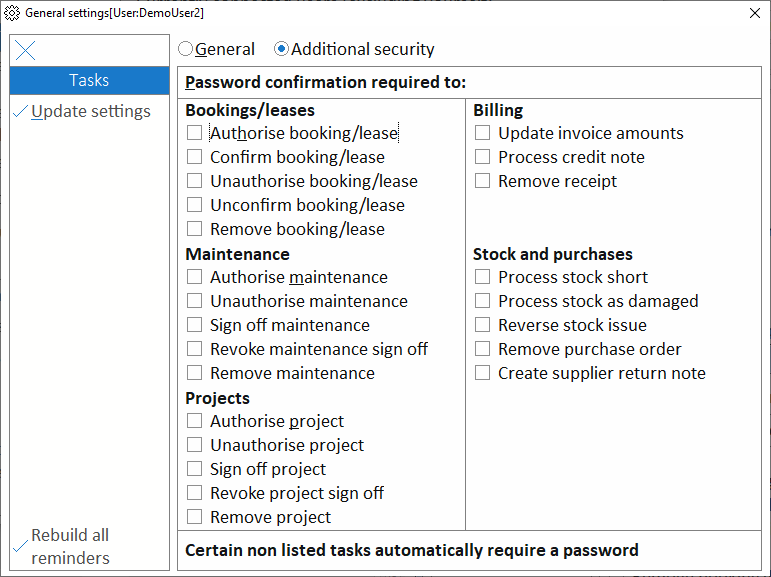
Additional security. Select this option (at the top) for a list of various tasks that you may require the user’s password before they are processed.
There are certain tasks that automatically require a password (e.g. the changing of user passwords by the system administrator).
Passwords for authorisation and sign off of maintenance/project schedules are not required in the scheduling form.
Similarly authorisation and confirmation passwords are not required in the booking form.
The general settings apply to all users, including the system administrator.